
Database Tools
Use Database Tools to look after the database file that holds your meeting history. It shows how big the file is, gives back unused space, and can remove old history so that the file does not keep growing.
Tip: Everything you do in this window affects the schedule database in use: the main one, or the foreign language group one when that mode is on. Switch to the mode you want before you open the window.
Opening the window
On the main window, choose Database > Database Tools...
The menu item is only available when your history is stored in the database.
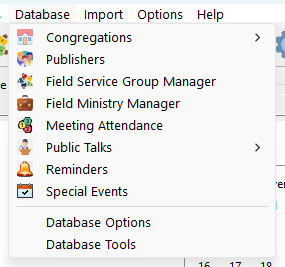
Figure 104. The Database Tools command on the Database menu.
The Database Tools window
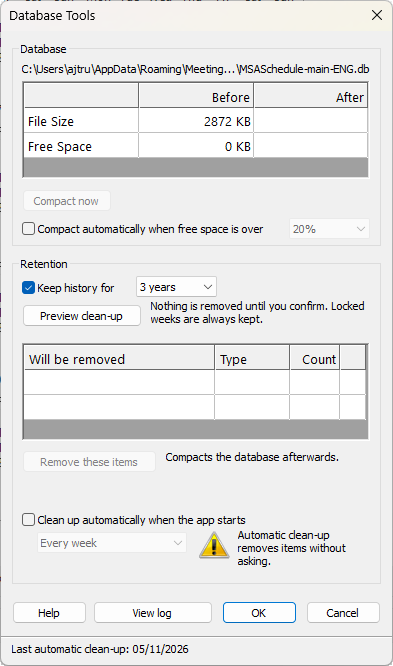
Figure 105. The Database Tools window.
The window has these parts:
- Database: the database file, its size and the unused space inside it, and the way to give that space back.
- Retention: the way to remove history that is older than the number of years you choose.
- The status line: at the bottom of the window, it shows the date of the last automatic clean-up, or says that there has not been one.
- The buttons: Help, View log, OK and Cancel. They are described at the end of this topic.
Database
The table shows the size of the database file and the unused space inside it, Before and After a function has run. Unused space appears when information is removed from the database. The file does not get smaller by itself, so compacting gives that space back.
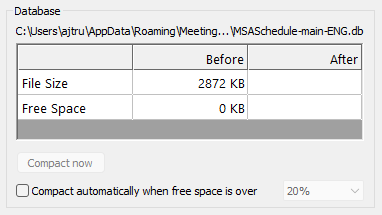
Figure 106. The Database group.
Compact now
Compact now rebuilds the database file without its unused space. Your information is not changed.
- Click Compact now.
- Confirm that you want to continue.
- When it has finished, the After column shows the new size.
Things to know:
- It needs free disk space of about twice the size of the database file. If there is not enough, nothing is changed and you are told.
- If the file is in use by something else, nothing is changed and the reason is shown.
- The button is unavailable when there is no unused space to give back.
Compact automatically when free space is over
Tick this and choose a percentage (10% to 50%) to have the database compacted for you when the program starts, as soon as the unused space is at least that share of the file.
- A small file is never rebuilt for nothing: the unused space must also be at least 1 MB.
- It is tried at most once a day, and it is silent.
- If the file is in use or the disk is full, the file is simply left as it is.
Retention
Retention removes old history from the database so that the file does not keep growing. It is off until you tick Keep history for and choose the number of years. You can choose from 1 year to 10 years; 5 years is the default. With it off, all history is kept.
Important: Removing history cannot be undone. Make a backup first if you are not sure. See Backup.
Step 1: Choose how long to keep history
Tick Keep history for and choose the number of years.
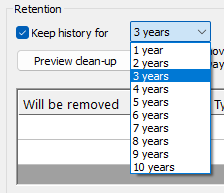
Figure 107. Choosing how long to keep history.
Step 2: Preview the clean-up
Click Preview clean-up. The table shows what would be removed. Nothing is removed yet.
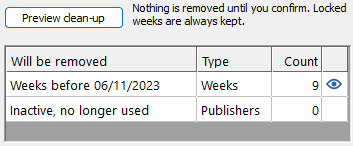
Figure 108. The preview shows what would be removed.
The table has these rows:
|
Row |
Meaning |
|
Weeks |
The weeks before the date shown. |
|
Publishers |
Publishers who are no longer in your publishers list and are not used by any week that is kept. |
Step 3: Remove the items
Click Remove these items and confirm. The items are removed in one step, and the database is compacted afterwards.
If the clean-up cannot be completed, nothing is removed.
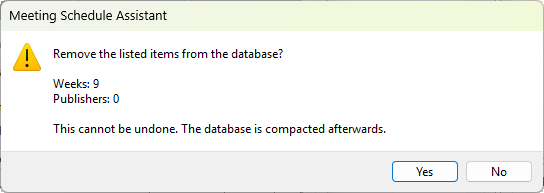
Figure 109. The question shown before the items are removed.
What is kept
- Locked weeks are never removed, however old they are.
- A publisher is only removed when no remaining week uses the name, so no name disappears from a week.
- Names that were typed in a week but are not in your publishers list, such as visiting speakers, are not counted as publishers. They go with their weeks.
- Changing the number of years, or the Keep history for tick, clears the preview. Click Preview clean-up again to see the new numbers.
- Click OK to keep the Keep history for setting for next time.
Details
After a preview, the last column of the table shows an eye icon for the Weeks row and the Publishers row, when there is something in them. Hover the pointer over the icon to see what it does.
Click an eye to open a panel on the right with a list of exactly what the preview found.
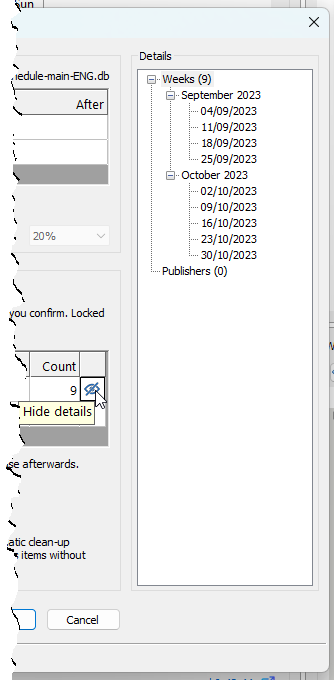
Figure 110. The details panel listing the weeks that would be removed.
- Weeks lists the weeks that would be removed, grouped by month. With a small number of weeks the months are opened for you. Otherwise click a month to open it.
- Publishers lists the names of the publishers that would be removed.
The row that is open shows a crossed-out eye. Click it to close the panel, or click the other row's eye to switch to it. The panel also closes when the preview is cleared.
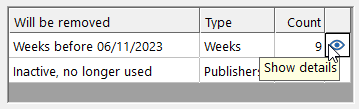
Figure 111. The eye icon opens the list and the crossed-out eye closes it.
Note: The list is only for looking. You cannot change what will be removed.
Clean up automatically when the app starts
Tick this to have the clean-up done for you when the program starts, with the same number of years as Keep history for. It is only available while Keep history for is ticked. Choose how often it runs: Every week, Every month or Every 3 months.
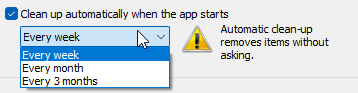
Figure 112. The automatic clean-up settings.
Warning: The automatic clean-up removes items without asking and without a preview. The same rules apply as for Remove these items: locked weeks are never removed, and no name disappears from a week that is kept. The database is compacted afterwards.
- It runs when the program starts, when the chosen time has passed since the last run.
- If the file is in use, nothing is changed and it tries again the next time the program starts.
- The date of the last automatic run is shown in the status line at the bottom of the window.
Use Preview clean-up first if you want to see what a given number of years would remove before you turn this on.
View log
View log opens the log of what Database Tools has done. It is available once something has been logged. The log is a text file kept next to the database, and it shows the newest activity first.
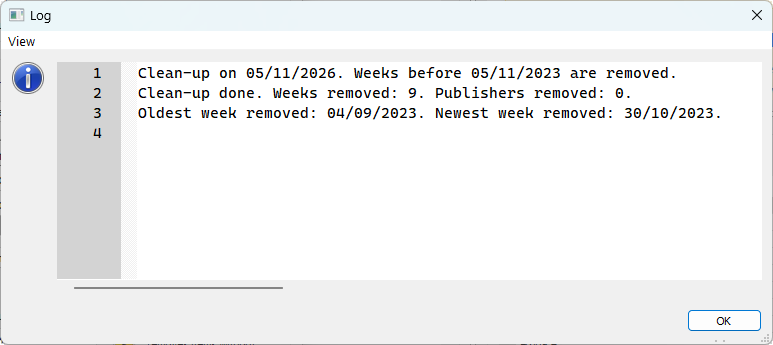
Figure 113. The Database Tools log.
- Each clean-up and each compact, manual or automatic, adds an entry with the date and time.
- A clean-up entry shows the date the weeks were before, how many weeks and publishers were removed, the oldest and newest week removed, and the names of the publishers that were removed.
- A compact entry shows the size of the file before and after.
- The log keeps the last 20 entries.
- An automatic run that could not be done (for example because the file was in use) is not logged.
Tip: Everything you do in this window affects the schedule database in use: the main one, or the foreign language group one when that mode is on. Switch to the mode you want before you open the window.
Buttons
|
Button |
What it does |
|
Help |
Opens this topic. |
|
View log |
Opens the activity log. |
|
OK |
Saves the automatic settings and closes the window. |
|
Cancel |
Closes the window without saving the automatic settings. Anything you have already done with Compact now or Remove these items stays done. |
Navigation
- Parent topic: Database Menu
- Previous topic: Database Options
- Next topic: Finding Entries