
Find and Search Tools
The editors include a built-in Find bar that lets you quickly search for text in the currently displayed schedule or report. Matches are highlighted as you type, making it easy to locate specific information.
Using Find
Press Ctrl+F or choose Edit → Find to open the Find bar in the upper-right corner of the editor.
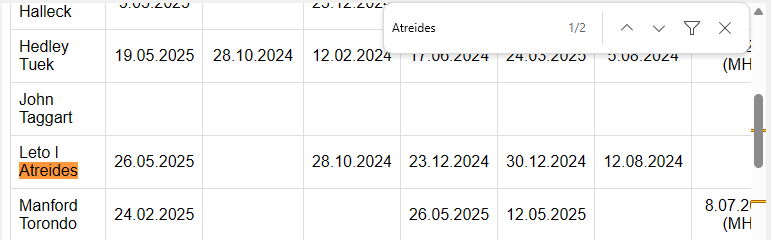
Figure 242. Find bar showing highlighted search results.
- Enter the text you want to find.
- Matching text is highlighted as you type.
- Use the Previous and Next buttons to move between matches.
- The match counter shows the current match and the total number of matches found.
- Select Close to hide the Find bar.
The Find tool can search for:
- Names
- Assignments
- Dates
- Notes
- Any visible text
Behaviour
- Searches only the currently displayed schedule or report.
- Use the Previous and Next buttons to move between search results.
- The Find bar remains open until you close it.
The Find tool is especially useful when reviewing long schedules or locating names, assignments, dates, and other information.
Navigation
- Parent topic: Common Features
- Previous topic: Zoom Controls