Zoom Controls
The editors include Zoom Controls that let you adjust how your schedule is displayed on screen. These settings affect only the on-screen view—they do not change printed or exported output.
Zoom Options
- Zoom In — Increase the zoom level.
- Zoom Out — Decrease the zoom level.
- Reset Zoom — Restore the zoom level to 100%.
- Preset Levels — Select a predefined zoom level (50%–400%).
- Custom Zoom — Enter a specific zoom percentage (10%–500%).
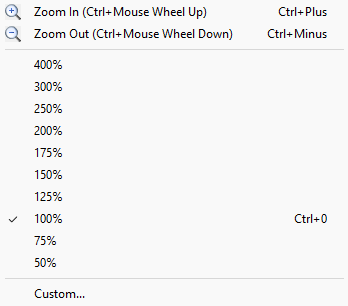
Figure 240. Zoom submenu with preset levels
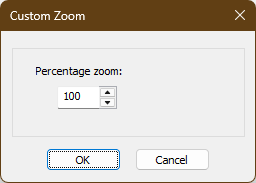
Figure 241. Custom Zoom window
Behaviour
- Zoom affects only the on‑screen view.
- The zoom level is saved and restored the next time you open the editor.
- Printed and exported output is unaffected.
This feature is especially useful when working on high-resolution displays or when you need a zoom level that isn't available in the preset options.
Navigation
- Parent topic: Common Features
- Previous topic: Preview in Browser
- Next topic: Find and Search Tools