
Meeting Attendance
The Meeting Attendance window makes it easy to record, review, and report attendance figures for your congregation’s meetings. It provides a clear calendar‑based layout, automatic totals, and seamless integration with reports.
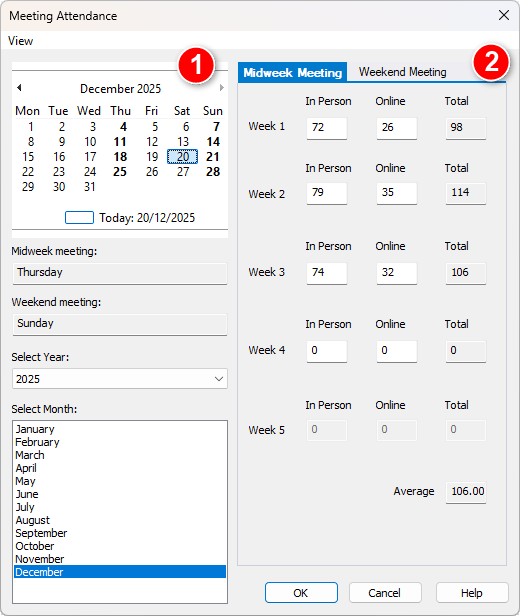
Figure 67. Meeting Attendance window.
How to Access
You can access this feature in any of the following ways:
- Database → Meeting Attendance
- Toolbar → Meeting Attendance
📌 Important: Your local congregation must already be added to the Congregation Database. If none is found, a popup message appears with a shortcut to open the Congregation Manager.
Using the Meeting Attendance Window
The Meeting Attendance window provides a simple, two‑panel layout for selecting meeting dates and entering attendance figures. You can also adjust attendance figures from the Week Overview panel on the main application window if you prefer to work directly from the weekly schedule.
- Left panel – Calendar, meeting days, and date selection
- Right panel – Attendance entry and calculated totals
💡 Remember to press OK to save your changes. Your updates are stored immediately and remain active until you modify them.
Meeting Days (Read‑Only)
The current Midweek and Weekend meeting days are displayed in read‑only fields.
These act as a memory aid, helping you confirm which days your congregation normally meets.
Calendar
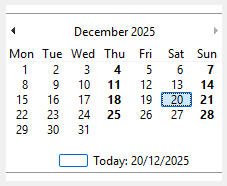
Figure 68. Calendar with meeting days displayed in bold.
- Meeting days appear in bold
- Today’s date is highlighted
- Clicking a meeting date automatically selects the appropriate In Person counter
This makes entering attendance fast and intuitive.
Selecting Year and Month
You can navigate dates in two ways:
- Select a Year and Month using the dropdown controls
- Use the calendar navigation arrows
Both methods stay in sync:
- Changing the year or month updates the calendar
- Navigating the calendar updates the selected year and month
Entering Attendance
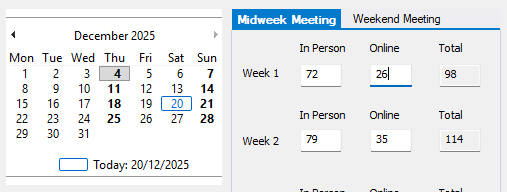
Figure 69. Fields for entering in-person and online attendance with automatic totals.
For each meeting week, you can enter:
- In Person attendance
- Online attendance
The Total is calculated automatically.
Totals and Averages
- Weekly totals update as you enter data
- The Average attendance is calculated automatically at the bottom of the window
No manual calculations required.
View Menu —Report Viewer
You can open the Report Viewer from the View menu on this window. The Report Viewer lets you generate, preview, print, and export reports.
See also: Report Viewer
Related Topics
Navigation
- Parent topic: Database Menu
- Previous topic: Field Service Group Manager
- Next topic: Public Talks