
Moving your schedules to the database
Meeting Schedule Assistant now keeps your schedules in a database instead of in meeting workbook (.mwb) files. If you used an earlier version, this window appears the first time you start the program so you can bring your existing schedules with you.
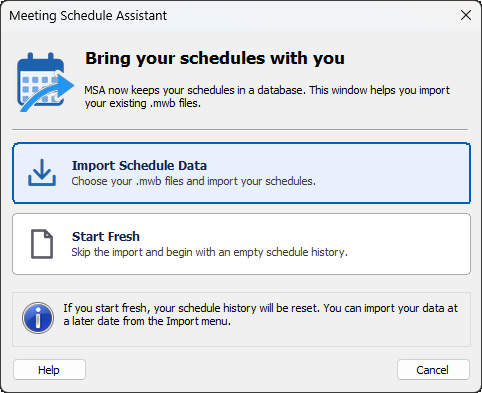
Figure 18. Choose to import your schedules or start fresh.
Choose how to continue
Import Schedule Data
Choose this to bring your old .mwb files into the database. It opens the Bulk Import of Workbooks window, where you can:
- Drag your .mwb files into the list, or use Add to find them.
- Use Backup to save a copy of your data first (recommended).
- Select Import.
If some of the weeks are already in the database, you are asked once whether to replace them or keep what is there. If the same week is in more than one file, the file lower in the list is used.
When the import has finished and you close the window, you are ready to go. If you close it without importing anything, you return to the choices.
Start Fresh
Choose this to begin with an empty schedule history. Nothing is deleted, but your earlier schedule history is not carried over. You can still import your .mwb files later.
Cancel
Cancel closes the window without changing anything. It appears again the next time you start the program.
Importing your files later
If you start fresh and change your mind, choose Import, then Bulk Import of Workbooks from the main window.
Good to know
- You only need to do this once. After you have chosen, the database is used for your schedules and assignment history.
- Your existing publisher and congregation information is not affected.
- Your .mwb files are not changed or removed. They stay where they are.
- A new installation does not show this window.
See also
Navigation
- Parent topic: Overview
- Previous topic: Using the 64 bit edition