Assignments Material
Click the Edit assignments material button on the Meeting Editor to open the window.
Use it to enter all the key information for the Apply Yourself to the Field Ministry section of the midweek meeting.
In most cases, this information will already be provided by volunteers who prepare the monthly data. However, you may need to enter the details manually if:
- You are using a language without a volunteer
- You are preparing your schedule before the volunteer data becomes available
The window is divided into three tabs:
- Brochure
- Students
- What Would You Say?
Tip: Use CTRL + I and CTRL + B to automatically insert italic or bold tags around selected text.
Brochure Tab
Screenshot
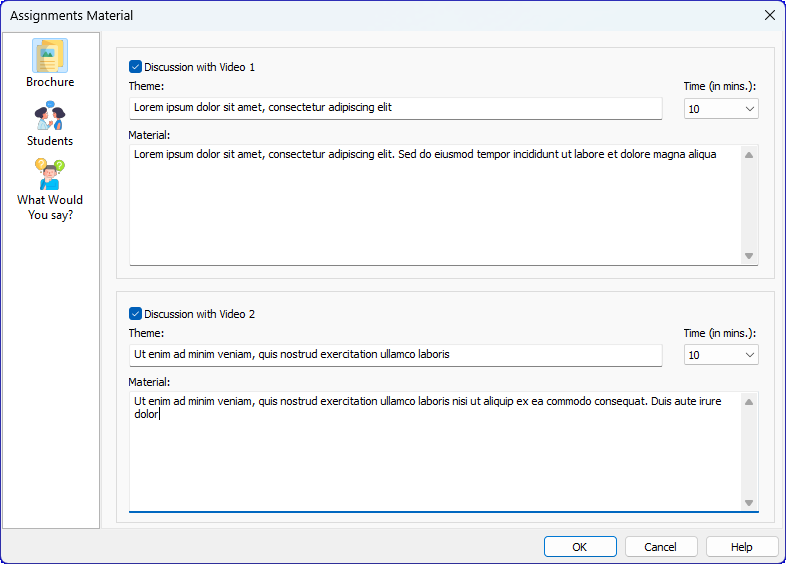
Figure 204. Brochure tab — define the two Discussion with Video items
Description
This tab is used to define the Discussion with Video items. These assignments are normally handled by an Elder or Ministerial Servant.
Each of the two panels represents one video discussion item.
How to use this tab
- Check the box to enable the discussion item
- Enter the Theme exactly as shown in the Meeting Workbook
- Enter the Material (usually the scripture or workbook reference)
- Select the duration in minutes
These details will appear in the Meeting Editor and on the generated schedule.
Students Tab
Screenshot
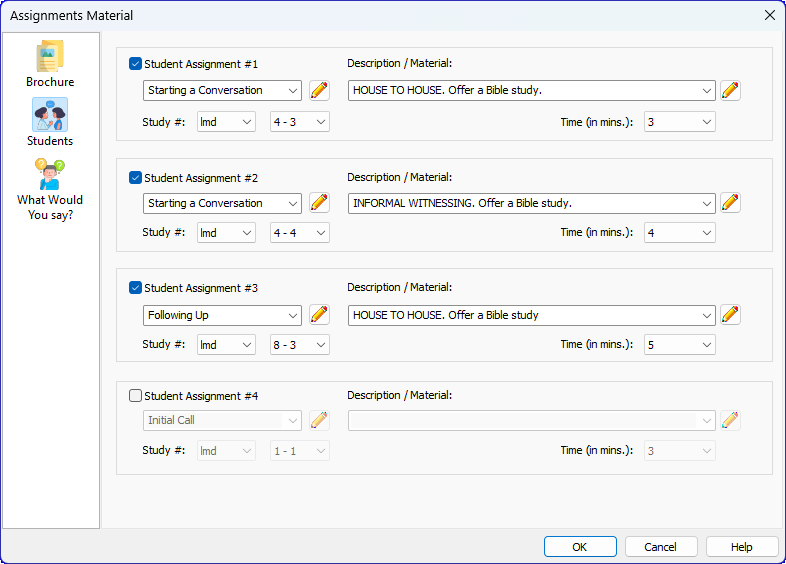
Figure 205. Students tab — define up to four student assignments
Description
This tab is used to define up to four student assignments for the week. These correspond to the student parts shown in the Meeting Workbook.
Each assignment block contains:
- Enable checkbox
- Assignment Type drop‑down
- Material / Description field
- Study reference (brochure + lesson + point)
- Duration in minutes
- Edit icon to customise the text
Supported brochures
- th — Teaching Brochure
- lmd — Love People Brochure
The brochure you select determines which study references are available.
Customising the lists
You can personalise the Assignment Type and Material drop‑downs to match the wording used in your language or the Meeting Workbook.
To update a list:
- Click the ✏️ pencil icon next to the description field
- Choose Add to list to save the current text
- Choose Edit list to open the Customise Lists window, where you can add, edit, or delete entries
This allows you to maintain consistent terminology across schedules.
What Would You Say? Tab
Screenshot
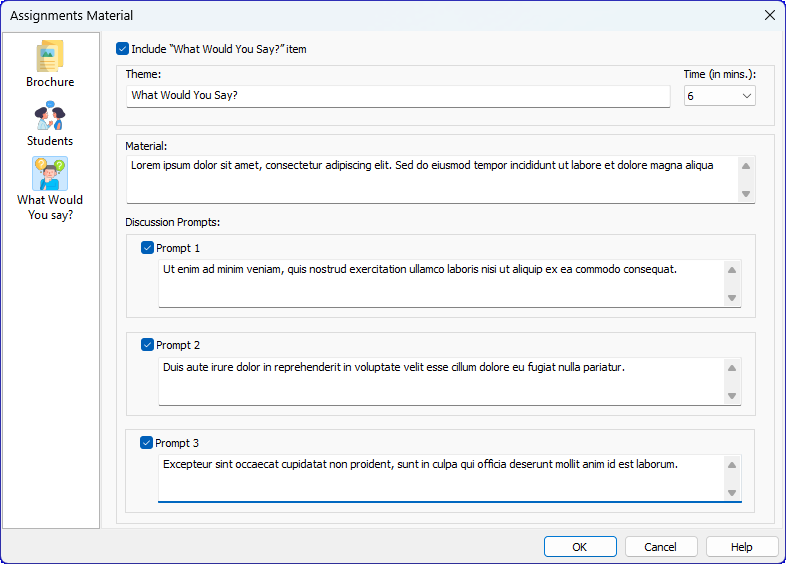
Figure 206. What Would You Say? tab — define the theme, material, and up to three prompts
Description
This tab defines the What Would You Say? item using the theme, material, and prompts taken directly from the Meeting Workbook.
Features
- Include checkbox to enable the item
- Theme (default: What Would You Say?)
- Material field for the source or scenario
- Duration in minutes
- Prompts 1–3, each with:
- Enable checkbox
- Text field for the discussion question
You may include one, two, or all three prompts depending on the workbook instructions.