Interactive Midweek Meeting Worksheet
🌿 Overview
This template supports both light and dark mode, switching automatically based on the software’s Appearance setting so it always matches your preferred look.
The Worksheet‑New‑Look template lets you take rich, formatted notes directly on the meeting worksheet. Everything you write is saved automatically in your browser’s local storage, so your notes stay with you even after you close the page.
Edit Button & Notes Editor

Figure 229. The Edit button appears in each notes section. Click it to open the rich text editor.
✨ What the Editor Does
Every section of the worksheet—Opening Comments, Treasures, Bible Reading, Student Talks, Living as Christians, and more—includes an Edit button. Clicking it opens a full rich text editor where you can write and format your notes.
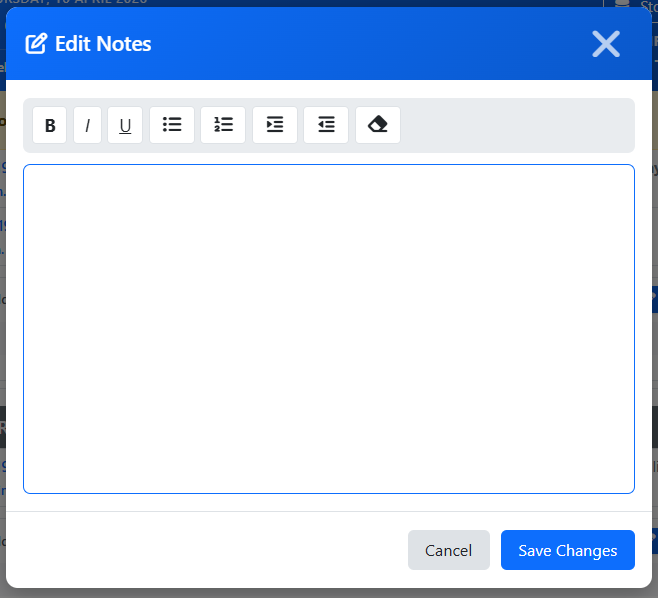
Figure 230. The rich text editor includes tools for bold, italic, lists, and more.
Formatting Options
You can format your notes using:
- Bold, Italic, and <u>Underline</u>
- Bulleted and numbered lists
- Indentation for structured notes
📝 How to Use the Notes Editor
- Locate the Edit button — Each notes section has a gradient “Edit” button with a pencil icon.
- Click Edit — A modal window opens with the full editor toolbar.
- Write your notes — Format them however you like.
- Save — Your notes appear in the display area below the button.
- Cancel — Close the editor without saving changes.
📄 Notes Display
After saving, your formatted notes appear in a shaded display area beneath the Edit button. You can reopen the editor at any time—your existing notes will load automatically for editing.

Figure 231. Saved notes appear in the display area and can be edited anytime.
Storage Manager
📦 What It Is
The Storage Manager lets you view, manage, and delete all your saved notes across different meeting dates. Everything is stored locally in your browser—nothing is uploaded or shared.

Figure 232. The Storage Manager organizes your notes by meeting date.
🔍 How to Access
Click the Storage button near the top of the worksheet to open the Storage Manager panel.
🧰 Storage Manager Features
View Saved Notes
- Notes are grouped by meeting date
- Each note shows a preview
Delete Options
- Delete Single Note — Click the bin icon next to a note to delete just that one item.
- Delete All — Remove all notes for the current meeting date.
- Clear All Notes — Remove every saved note across all meeting dates (use with caution).
Data Privacy
Your notes are stored only in your browser’s local storage:
- No data is sent over the internet
- No login or account is required
- Notes stay on your device
- Clearing browser data will delete all saved notes
Sharing the Worksheet
You can share your worksheet with the Chairman or Auxiliary Classroom Counsellors using PDF Export or HTML Export.
- PDF is ideal for printing or quick reference
- HTML keeps all interactive features intact
➡️ View detailed sharing instructions → Sharing Guide
Troubleshooting
My notes disappeared
- Notes are tied to the specific meeting date — make sure you’re viewing the correct one.
- Notes are stored locally in your browser; if the editor was reset or browser data was cleared, notes may be gone.
Storage Manager shows no notes
- You may not have saved any notes yet.
- You might be viewing a different meeting date.
The Edit button isn’t opening the editor
- Try refreshing the Meeting Editor.
- If the template was exported and opened externally, JavaScript may be disabled — see the separate Sharing Guide help topic.
Print looks different from the screen
This is intentional. Print styles are optimized for paper/PDF:
- Edit buttons are hidden
- Colours are preserved
- Spacing is adjusted for readability