
Special Events
The Special Events window lets you manage special meetings and events throughout the year. When you create a schedule, Meeting Schedule Assistant automatically includes any events that fall within the selected date range.
Special events are stored in your database and are included when you back up or restore your data.
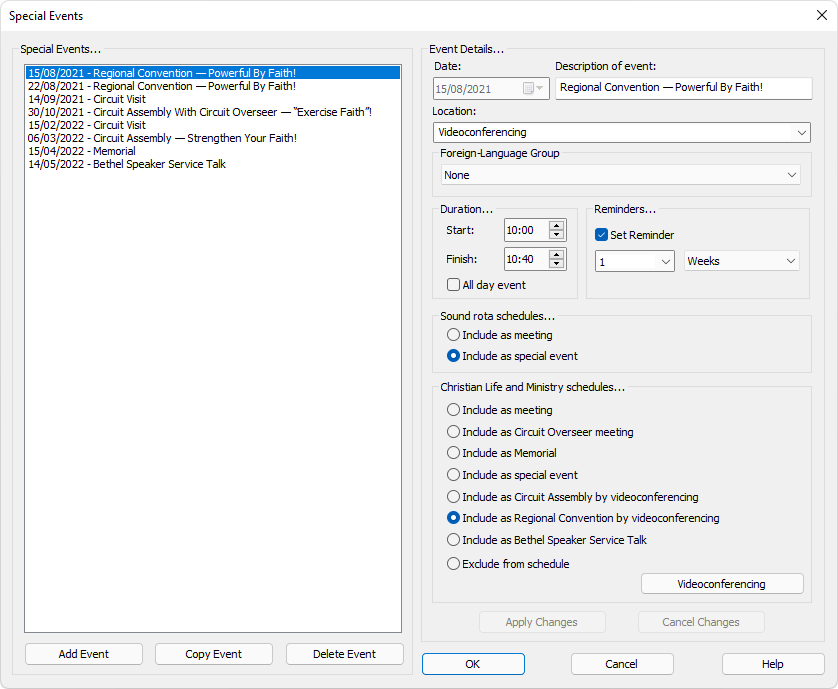
Figure 78. Special Events Manager window
💡 Note: Past events are automatically excluded to keep the file size small.
Changes are only saved permanently when you press OK or Close.
How to Access
You can access this feature from:
- Database → Special Events
- Toolbar → Special Events
Add Event
Press Add Event to open the Special Event window.
After entering the details, press OK to save or Cancel to discard.
If you try to add an event on the same day as another, a warning appears.
The Add Event window contains the same fields that appear in the details pane of the Special Events window.
Copy Event
Press Copy Event to duplicate the selected event on another date.
A window appears for you to choose the new date.
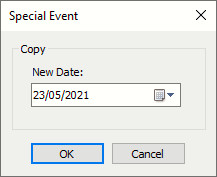
Figure 79. Copy Event date selection window
The new event contains the same details as the original, with only the date changed.
💡 Note: This button is disabled if there are unsaved changes.
Delete Event
Press Delete Event to remove the selected event permanently.
You’ll be asked to confirm before deletion.
💡 Tip: You can also press the Delete key to remove the selected event.
Event Details
Select the date for the special event (disabled when editing an existing event).
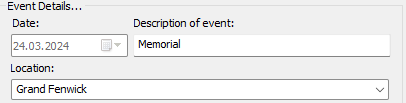
Figure 80. Event details window
Enter a description for the event or choose one from the dropdown list.
Location
Specify the location using the dropdown list or by typing an address.
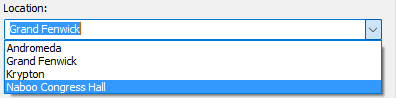
Figure 81. Location field with dynamic dropdown list
💡 Note: The location list is dynamic.
You can press Delete to remove entries or type new ones to add them.
Changes become permanent only after closing the window with OK or Close.
Including a location is especially useful when exporting events to Google Calendar, where the map button displays the event location.
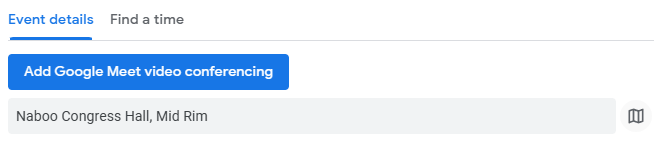
Figure 82. Example of location displayed in Google Calendar
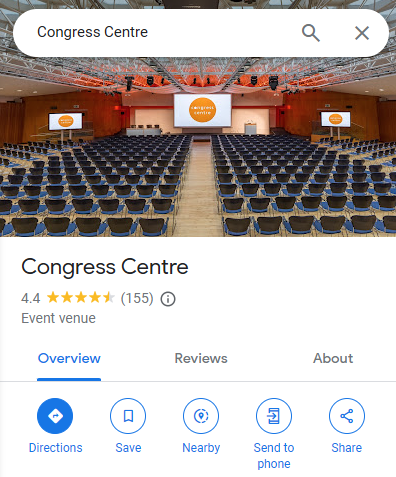
Figure 83. Example of map view for an Assembly Hall location
You can also set a default meeting location in Google Settings.
Foreign‑Language Group
Assign the event to a specific foreign‑language group if applicable. This determines which events appear when using the Meeting Editor in standard or foreign-language mode.
- Events with group set to None appear in standard mode.
- Events with a group selected appear only when using foreign‑language mode.
Duration and Reminders
Specify the start and end times for your event.
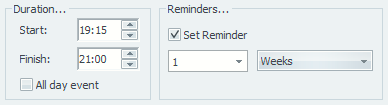
Figure 84. Duration and reminder settings
These options are unavailable for all‑day events. They affect how events appear in Google Calendar and allow you to override default reminder settings.
Include As
The available options depend on the type of schedule you are creating.
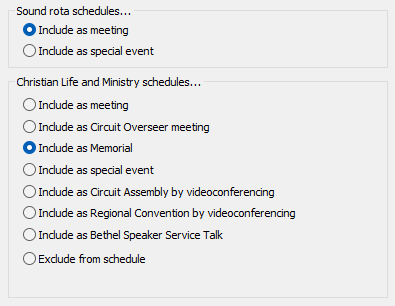
Sound Rota Schedules
- Include as a meeting — treated as a normal row.
- Include as a special event — merges all cells for that row and displays event details.
Christian Life and Ministry Schedules
- Include as a meeting — added as a regular meeting with event details in notes.
- Include as Circuit Overseer meeting — adjusts assignments automatically.
- Include as Memorial — shows only event details and location.
- Include as a special event — displays only event details and location.
- Include as Circuit Assembly by videoconferencing — enables the Videoconferencing button for extra details.
- Include as Regional Convention by videoconferencing — same as above.
- Include as Bethel Speaker Service Talk — enables the Bethel Speaker Service Talk button.
- Exclude from schedule — suppresses the event from midweek schedules.
More Information:
Videoconferencing
The Videoconferencing option is used for meetings or events held by videoconference. It was introduced to allow these events to be handled differently in the Meeting Editor.
Hover over the Videoconferencing button to view details in a tooltip.
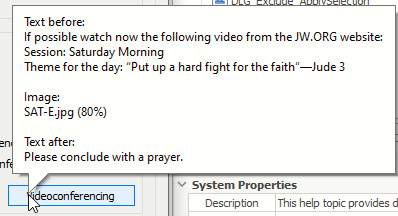
Figure 86. Tooltip showing videoconference details
Apply or Cancel Changes
When you select an event, its details appear for editing.
The date field is always disabled — to change it, delete and re‑add the event or use Copy Event.
💡 Tip: Use Copy Event to duplicate an event to the correct date, then delete the original.
After changing an event, click Apply Changes to save your edits, or Cancel Changes to discard them before selecting another event.
Cancel
Press Cancel to close the window without saving any unapplied changes.
If the button changes to Close, all changes have already been saved and can no longer be undone.
Related Topics
- Bethel Speaker Service Talk
Learn how to include speaker details, congregation information, and special instructions for Bethel Speaker Service Talk events on your schedules. - Memorial
Configure Memorial event settings including date, time, location, and how this special occasion appears on your published schedules. - Videoconferencing
Set up videoconference details for assemblies and conventions, including connection info and how they're displayed differently in the Meeting Editor.
Navigation
- Parent topic: Database Menu
- Previous topic: Reminders
- Next topic: Database Options