Other Assignments
The Other assignments menu button is available when either Brochure or What Would You Say? material has been specified.
From this menu, you can open the two additional Apply Yourself to the Field Ministry assignment windows:
- Discussion with Video (Brochure)
- What Would You Say?
Although these windows share a similar layout, they do not behave identically. The What Would You Say? window includes a Part Details section, while the Brochure window does not.
Discussion with Video (Brochure)
Select Brochure from the menu to open the Discussion with Video assignment window.
This resizable window allows you to assign brothers to handle the part in each location. It does not display the material or a Part Details section — its purpose is solely to manage the assignments for the brochure-based video discussion.

Figure 208. The Discussion with Video window is used to assign brothers to handle the brochure-based video discussion.
What Would You say?
Select What Would You Say? from the menu to open the WWYS assignment window.
This window is visually similar to the Discussion with Video window, but with one important difference:
it includes a Part Details section at the bottom, showing the WWYS theme and main material taken from the Meeting Workbook.

[screenshot - alt text: What Would You Say? assignment window showing dropdown lists for Main Hall and Auxiliary Classrooms, with a Part Details section at the bottom.]
Figure 209. The What Would You Say? window includes a Part Details section showing the WWYS theme and prompts.
Making Manual Assignments
Use the dropdown lists on the left-hand side of the window to select who will handle the assignment in each location.
The brothers listed here are those who have the Treasures assignment in the Publishers Database.
Auxiliary Classroom controls are only enabled when an auxiliary classroom is available for that week.
Tip: You can also type a name manually — you are not limited to the dropdown list.
Using Assignment History
Both the Discussion with Video and What Would You Say? windows include an Assignment History panel on the right-hand side.
The list is sorted in ascending date order and helps you see who has handled the assignment previously.
Two tabs are available:
- Audience-specific history — shows history only for the currently selected audience.
The tab heading updates automatically when you click into each dropdown list. - Full history — shows all available history information.
The number of times each brother has previously handled this assignment appears in square brackets.
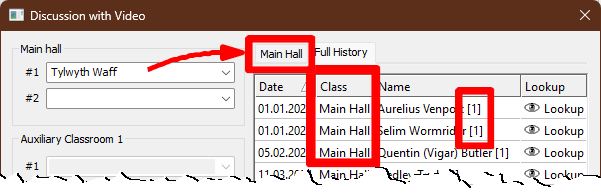
Figure 210. The Assignment History panel is available in both tabs and shows future assignments in bold text.
You can also open the pop‑up Assignment History window if you prefer. This feature is currently available only in the Brochure window.
Lookup
Click Lookup to display a list of previous assignment dates.
Any future assignments are shown in bold.