
We’re pleased to release Meeting Schedule Assistant 26.5.0, a version that represents many hours of focused work. This update introduces full support for the What Would You Say? meeting item — a feature that became part of the Meeting Workbook starting with the September/October 2026 edition. We’ve taken great care to ensure the new workflow feels natural, reliable, and ready for monthly data volunteers.
A New Way to Enter “What Would You Say?” Information
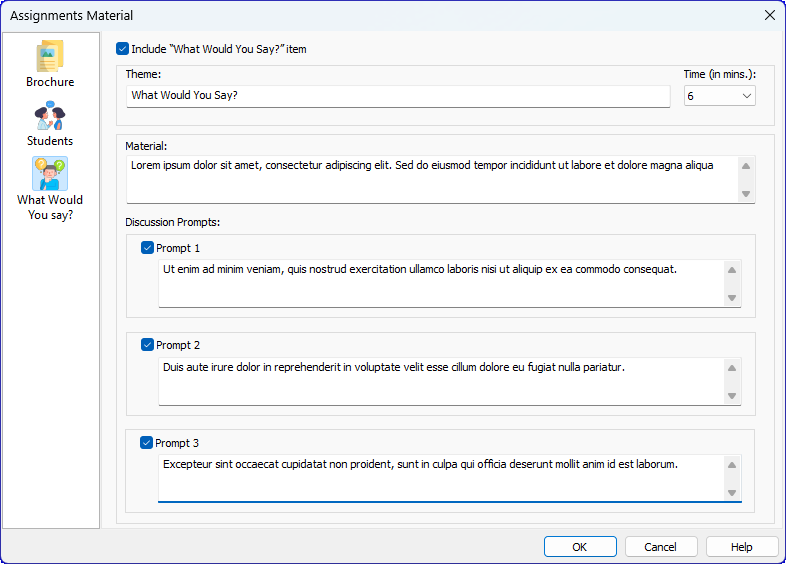
To support this new meeting item, we’ve added a dedicated window for entering the What Would You Say? details from the Meeting Workbook. Monthly data volunteers will use this most often, but it’s available to everyone — including users in languages where no volunteer is currently preparing the monthly data.
This new window keeps everything neatly organised in one place, making it easy to enter the theme, material, and prompts. It now appears as part of a simple, tabbed layout so it feels natural alongside the other meeting sections.
Selecting Who Will Handle the “What Would You Say?” Item
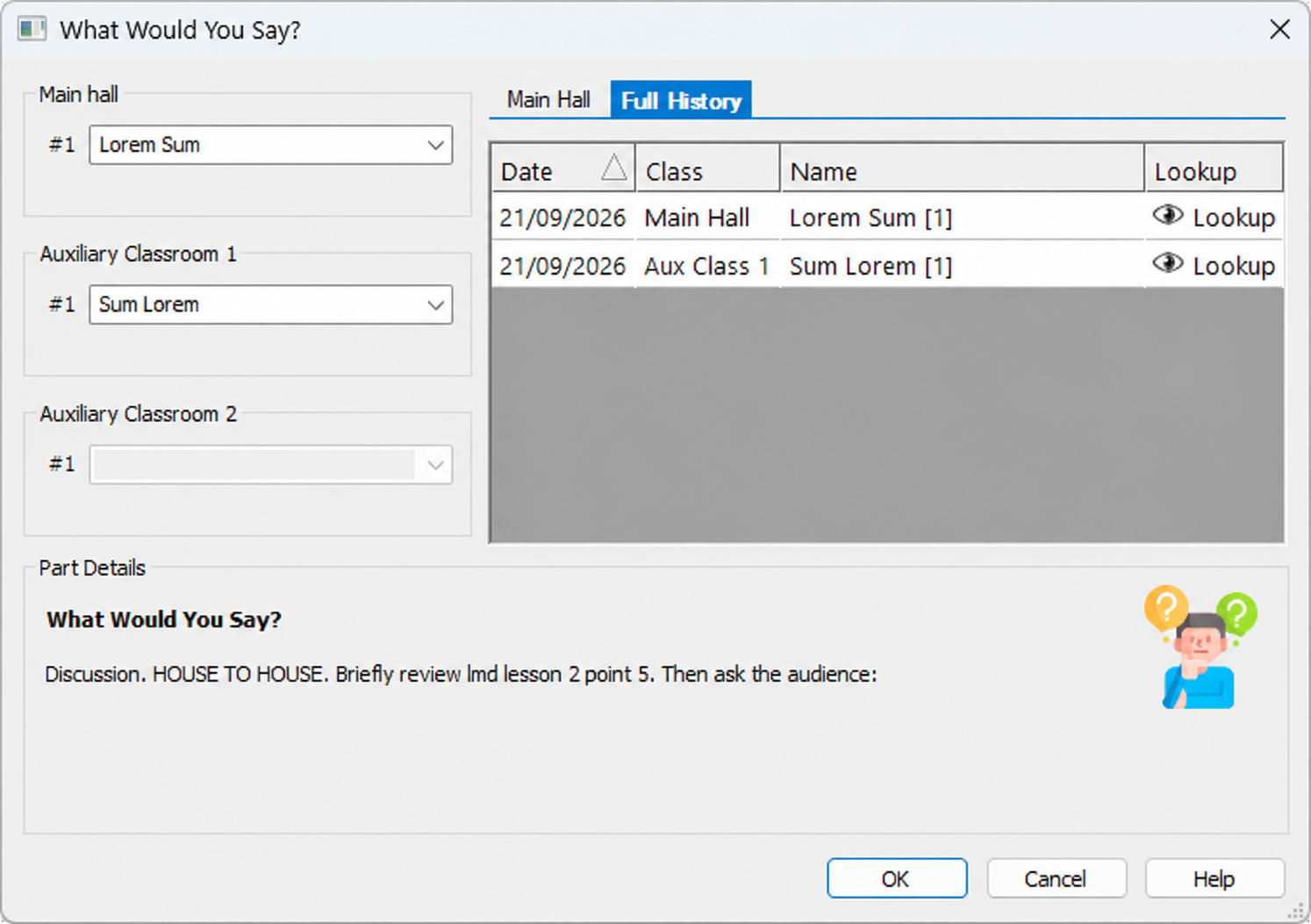
Alongside the new material window, we’ve also added a simple way to choose which brother will handle the What Would You Say? item. This new window follows the same clean, tabbed layout, making it easy to review the upcoming meeting and select the appropriate brother for each audience.
A Quick Note
At this stage, the dropdown lists include all appointed men. We’ll review this again once any updated guidelines become available.
Updated Workbook and Worksheet Templates
The built‑in templates have also been updated to support the new What Would You Say? item. On the Workbook, only the theme is shown. The Worksheet goes further by including the theme, material, and points for discussion, giving the meeting chairman everything needed in one place.
All of this information is stored in the underlying XML, so you’re free to customise your own templates just as before. The snippet below is taken from the Worksheet template, showing how the new item is represented.
<WhatWouldYouSay Index="6">
    <Theme>What Would You Say?</Theme>
    <Names>
        <Name Class="2">Sum, Lorem</Name>
        <Name Class="1">Lorem Sum</Name>
    </Names>
    <Time StartTime12="7:56" StartTime24="19:56" EndTime12="8:02" EndTime24="20:02" DurationShort="6 min." Duration="6">6 min.</Time>
    <SourceMaterial>Lorem ipsum dolor sit amet, consectetur adipiscing elit. Sed do eiusmod tempor incididunt ut labore et dolore magna aliqua.</SourceMaterial>
    <Prompts>
        <Prompt Index="1">Lorem ipsum dolor sit amet, consectetur adipiscing elit?</Prompt>
        <Prompt Index="2">Ut enim ad minim veniam, quis nostrud exercitation ullamco laboris?</Prompt>
    </Prompts>
</WhatWouldYouSay>
Need More Detail?
The built‑in Workbook templates currently show only the theme for the What Would You Say? item. If you would like the material or discussion points included as well, feel free to get in touch — we can explore adding this to a future update.
Recent Public Talks Database Updates
We’ve also updated several of the Public Talks databases in supported languages as part of our ongoing review process. These updates ensure that talk titles, outline dates, and media status stay accurate and up to date.
- Estonian
- Finnish
- German
- Greek
- Gujarati
- Gun
- Haitian Creole
- Hindi
- Hungarian
More languages will be reviewed as time permits.
Download
Supported Operating Systems
- Windows 10
- Windows 11
Deprecated Operating Systems
These operating systems are no longer supported:
- Windows 7 (Service Pack 1)
- Windows 8.1
You can still download the last supported version of Meeting Schedule Assistant (which was 23.1.0) from here. But this version is no longer maintained. You are encouraged to use version 23.1.1 or higher.
Supported Operating Systems
- Windows 10
- Windows 11
Deprecated Operating Systems
These operating systems are no longer supported:
- Windows 7 (Service Pack 1)
- Windows 8.1
You can still download the last supported version of Meeting Schedule Assistant (which was 23.1.0) from here. But this version is no longer maintained. You are encouraged to use version 23.1.1 or higher.
You can set the software to update automatically, or upgrade at any time using the Check for Update option in the Help menu.