Version 26.8.0 of Meeting Schedule Assistant (2026 Edition) is now available. This release brings a brand new Stopwatch to help you keep parts on time, much more flexible placement of the “What Would You Say?” item, some dark mode polish, and a couple of handy fixes in the meeting editor. Here is what is new.
New: a Stopwatch for keeping to time
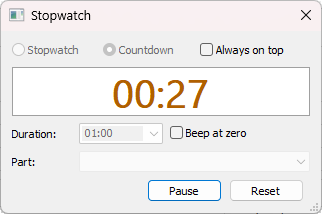
You will now find a Stopwatch in the Tools menu of both the main window and the meeting editor. It can count up or down, and it can stay on top of other programs so it is always in view. As time runs out it turns amber, then red, and if you go over it shows the overrun.
In the meeting editor, just choose a part of the selected week and the Stopwatch loads that part’s allotted time for you.
Improved: put “What Would You Say?” exactly where you need it
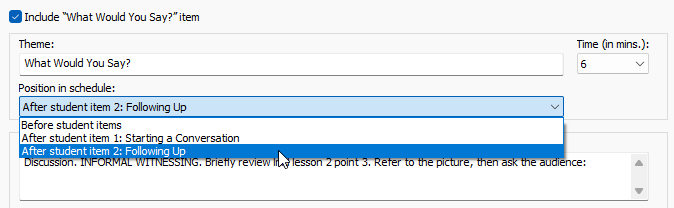
The Position in schedule option for the “What Would You Say?” item is now much more flexible. Instead of only placing it before or after all of the student items, you can now place it after any student item. The list shows each student assignment by number and type, based on the Students tab, so it is easy to pick the right spot. Part numbers and times on the schedule follow the position you choose.
Templates and calendars follow along
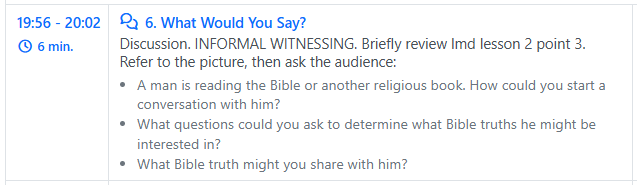
- The built-in workbook and worksheet templates now show the “What Would You Say?” item in the position you choose.
- The New Look worksheet now also shows the “What Would You Say?” and “Discussion with Video” items.
- Google Calendar: the “What Would You Say?” item now appears in the position chosen for the week, instead of always after the student assignments.
- Outlook Calendar: midweek meeting events now include the “What Would You Say?” item, in the position chosen for the week. Before, it was left out.
A note for custom template users
If you have custom templates that used the Position attribute of the “What Would You Say?” item, they will need updating. It has been replaced by the AfterStudentItem attribute:
0= before the student items1to3= after that student item4= after the student items
Dark mode refinements
A couple more areas now look right in dark mode:
- Disabled tree lists, such as those in the Assignment History window, now keep their dark background with dimmed text, instead of turning light grey.
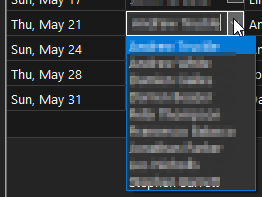
- The grid cells in the Assignment Editor now show dark drop-down lists, text boxes and drop-down arrows instead of white ones.
Fixes in the meeting editor
- Typing or pasting into the Bible Reading material box on the first-half page of the meeting editor copies the text into the other classes’ Bible reading material boxes again, as it did before.
- Keyboard shortcuts such as Shift+F6 (import English schedule information) and F6 (import schedule information) now work when you are on the first-half or second-half pages of the meeting editor. Before, they only worked on the main part of the editor.
Get the update
As always, thank you for your feedback and suggestions. They really do shape each release. If you have any questions about the new Stopwatch or the “What Would You Say?” position setting, please get in touch.
Supported Operating Systems
- Windows 10
- Windows 11
Deprecated Operating Systems
These operating systems are no longer supported:
- Windows 7 (Service Pack 1)
- Windows 8.1
You can still download the last supported version of Meeting Schedule Assistant (which was 23.1.0) from here. But this version is no longer maintained. You are encouraged to use version 23.1.1 or higher.
Supported Operating Systems
- Windows 10
- Windows 11
Deprecated Operating Systems
These operating systems are no longer supported:
- Windows 7 (Service Pack 1)
- Windows 8.1
You can still download the last supported version of Meeting Schedule Assistant (which was 23.1.0) from here. But this version is no longer maintained. You are encouraged to use version 23.1.1 or higher.
You can set the software to update automatically, or upgrade at any time using the Check for Update option in the Help menu.